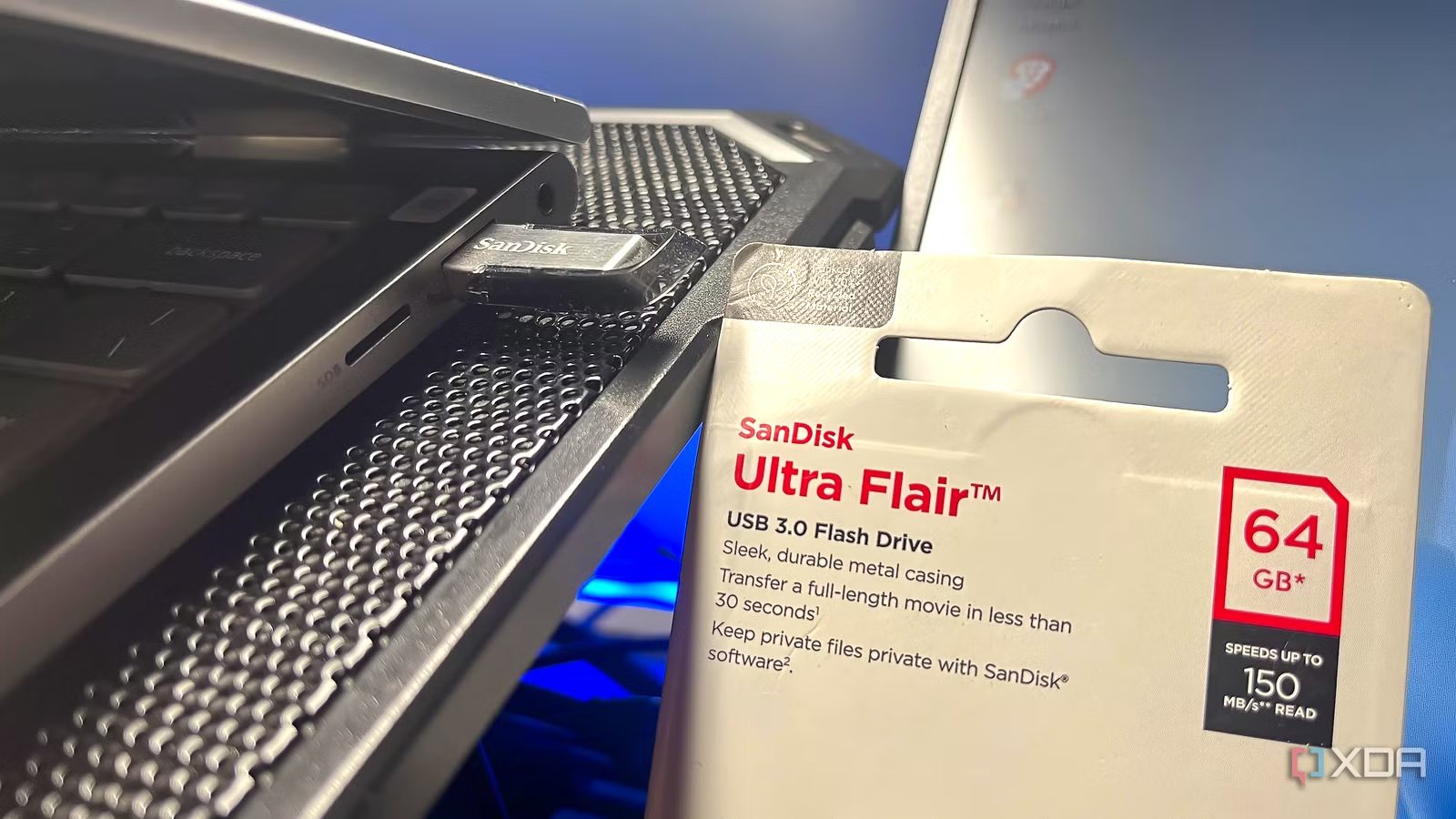
When USB 3.0 was first introduced nearly 17 years ago, it was considered a major performance improvement over USB 2.0. Since then, the USB family has evolved with USB 3.1, USB 3.2 and USB4 boasting high transfer speeds, but USB 3.0 remains relevant today and you can still easily find devices using the standard. I have several USB 3.0 flash drives and a USB hub. As surprising as it may seem, these devices have an issue that directly affects the router’s 2.4GHz Wi-Fi range. It is not limited to; the problem even affects the mouse and keyboard.
What’s amazing is that companies have known about this for over a decade, and while many have redesigned their products, especially router brands, to minimize this, the average user has little understanding of this interference problem. However, the good news is that you don’t have to give up on USB 3.0 devices entirely. For most of you, the blockage won’t be noticeable, but for others, simple fixes and workarounds will help.
Noise from the USB 3.0 data spectrum is to blame
It’s not as complicated as it sounds
USB 3.0 does not transmit wireless signals per se, but the electrical activity or, more precisely, the electromagnetic noise that occurs during data transfer is the cause of the problem. The noise can be in the 2.4-2.5GHz range and interference occurs with both Wi-Fi networks and Bluetooth devices.
Wireless devices operating on the same frequency band can pick up this noise and cause performance issues such as mouse stuttering for no apparent reason or frequent connection drops. Likewise, this electrical noise can affect the 2.4GHz Wi-Fi band. I agree, the 2.4GHz band isn’t what users connect their computers or smartphones to, but most smart home devices like cameras and smart plugs use it. So, slow speeds or connection problems can be more difficult than you think. Router manufacturers have also expressed particular concern about this issue, as many routers have USB 3.0 ports and such a nearby source of interference can disrupt 2.4GHz signals. We will touch on this later.
It should be noted that there is no single source of interference. The noise can come from the device’s USB 3.0 connector, the USB 3.0 connection itself, or even the cable itself. This is important because the source of this interference will need to be considered when looking for ways to reduce it. Some common devices that can cause wireless interference are flash drives, hard drives, and USB hubs.
Additionally, the amount of noise or interference is generally not dependent on the USB 3.0 device being actively used. However, devices may behave differently. In some cases, increased activity, such as active data transfers between a computer and a flash drive or memory drive connected to a router, can also increase interference.
Companies have known about this problem for years
Some have redesigned their products to reduce friction

Companies have known about this barrier problem for over a decade. Intel even a research work 2012 to be informed about Given that this is not an obscure problem, it was natural for companies to redesign their products to reduce barriers. And they did.
For example, router manufacturers have taken a number of measures to reduce interference. Some have changed the position of the antennas relative to the USB port, some have redesigned the hardware to isolate the noise source, and D-Link added an option to disable USB 3.0 ports in the router settings. Even wireless adapter manufacturers have taken steps to reduce the interference of USB 3.0 connections and devices. As for other devices, proper shielding of the noise source as shown in Intel’s white paper helped to some extent.
The fixes are simple
Adequate shielding, movable devices and switching ports

At this point, you’ve probably guessed that this problem is specific to the USB 3.0 standard, and I don’t think it can be completely eliminated. For example, on a very old router, when connected to the 2.4 GHz band, you may notice a performance impact when connecting a flash drive, hard drive, or printer. There’s nothing you can do about it except get a new, better designed router.
However, there are some fixes that can help if you’re having trouble connecting a mouse, keyboard, or headset (mostly devices that rely on Bluetooth connectivity) on computers. First, you should keep wireless connectors as far away from USB 3.0 ports as possible. Moving them away from the noise source reduces interference, which improves performance. Also, if possible, use USB 2.0 ports to connect devices. I agree, you won’t get high transfer speeds, so if speed is not a priority, use this solution. Finally, I don’t recommend exploring shielding for the average user because it’s relatively complicated, but if you’re comfortable with it, you can always give it a try.
Not every update is necessarily an improvement
USB 3.0 is better than USB 2.0 in terms of transfer speed, but the standard has a flaw that raises an important issue: not every upgrade is necessarily an improvement. There are also disadvantages. This may not be a problem for everyone, but the barrier is still there. Of course, I’m not suggesting you ditch USB 3.0 devices entirely. But the next time you’re experiencing connectivity issues on a 2.4GHz Wi-Fi band or a Bluetooth device, check to see if there’s an active USB 3.0 device nearby.
Related Posts
 Microsoft’s rollback of Copilot continues with scaling it out of OneDrive’s file manager options.
 This ESP32 CYD project turns your display into a Flock camera scanner
 Hackers are using unpatched Plex servers as crypto-miners, and yours could be at risk.
 The 3-2-1 backup rule has an obvious caveat that ransomware exploits very well.