I’ve been using the Alienware AW3423DW OLED for the past four years, and although I bought it for gaming, I now mostly use it as an extra monitor that gives me plenty of room for multitasking. This 21:9 aspect ratio gives me the extra width to stack multiple windows side by side and keep any of them open without feeling too cramped. Since I’m usually juggling Discord, Chrome, and TradingView, even when gaming, Snap Layouts wasn’t easy to organize everything on the fly.
As much as I’ve enjoyed using Snap Layouts since Windows 11 first launched, I found the preset layouts too restrictive for an ultra-wide monitor. Although Microsoft says the layouts you see may depend on the display size, my ultrawide doesn’t get anything special compared to my other two 16:9 monitors. When I first read about it, Microsoft convinced me to try FancyZones in PowerToys, and after seeing how customizable it was, I haven’t looked back.
FancyZones allows me to create the layout I want
I probably have a different layout for each of my three monitors
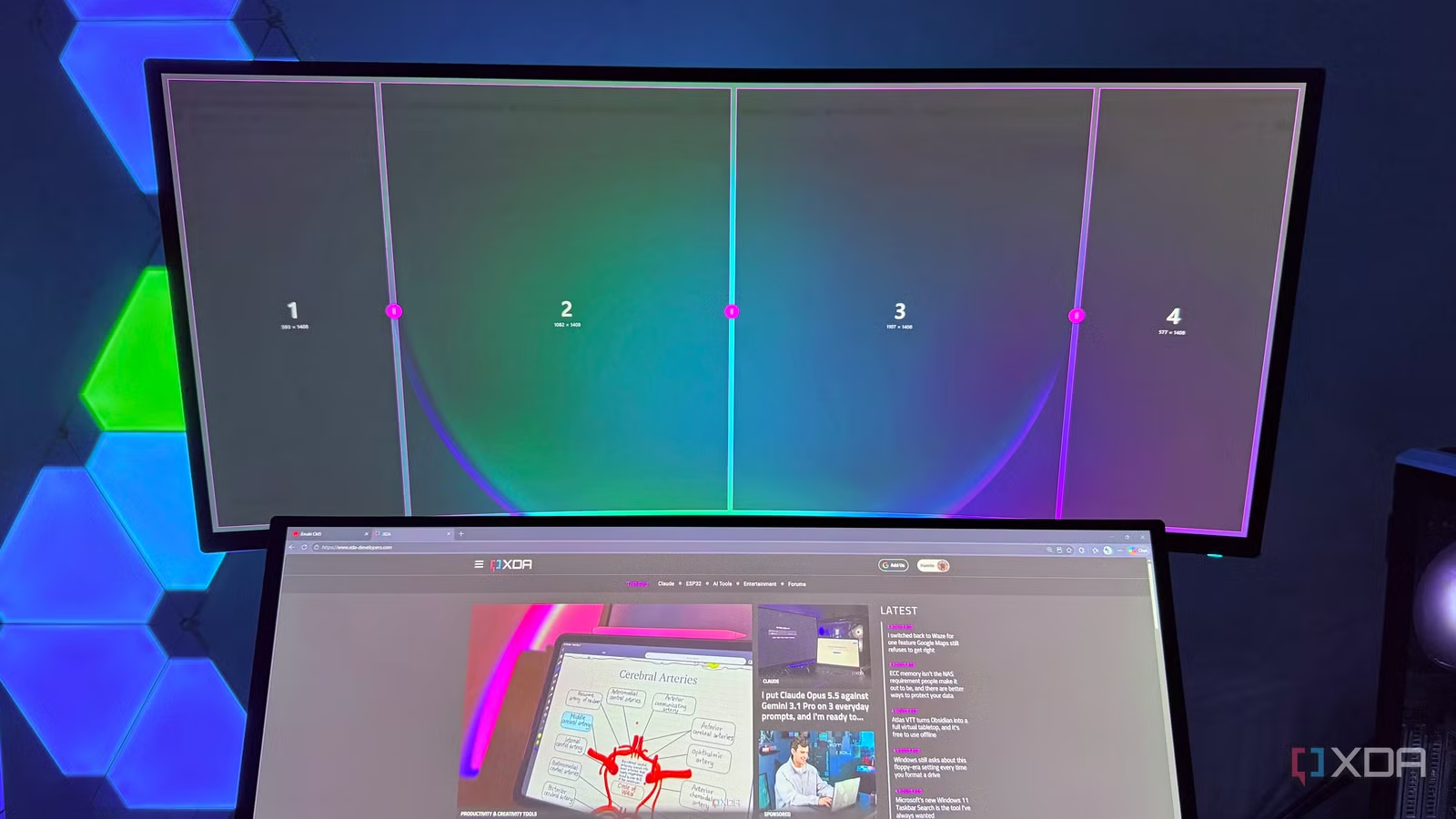
If you use FancyZones after installing PowerToys, you won’t be disappointed because you only have five preset layouts to choose from. Snap Layouts, on the other hand, gives me eight on each monitor. So, to take full advantage of its features, you need to create a custom layout by going here Open PowerToys Settings -> FancyZones -> Layout Editor. My main problem with Snap Layouts is that it doesn’t provide a layout to arrange four windows horizontally, so that’s exactly what I did.
I split the ultrawide into four equal zones and now I can fit four windows side by side without having to manually resize each one. You can go crazy with layouts, but I just want something practical. My favorite part about FancyZones is that it remembers what layout I assigned to each monitor. For my 4K monitor I created the familiar four-window grid using Snap Layouts, and for the other standard 1440p I created a simple two-column layout. So each of my three monitors has a layout that suits how I use it.
FancyZones gets the capture part right
No need to drag the windows to the edge

For a feature called Snap Layouts, you’d expect the actual capture process to be its biggest strength. It’s only easy when you’re snapping windows to the edges or corners of the screen. To see additional layout options, you need to drag the window to the top edge of the monitor. Then you still need to drop the window to the desired area. Of course, you can hover over the zoom button instead, but since it’s even closer to the top-right corner, you’ll often be moving the cursor across the screen to bring up the layouts.
With FancyZones, I just hold on Shift when I drag the window, my custom areas are immediately displayed. Then I can drop the window to the desired area without having to move it to the top of the screen first. This might not seem like a big deal, but on a 34-inch ultra-wide, it saves a lot of mouse movement when you’re constantly rearranging windows. Since I know where each zone is, I don’t have to think about where to put the window.
Snap Layouts has simplicity for this
But FancyZones is basically a one-time setup that only takes a few minutes

If there’s one thing Snap Layouts gets right, it’s that you don’t have to install anything. If you like the predefined layouts, you don’t need to mess with anything else. And if you just want a split screen or four windows arranged in a grid, you don’t need to generate layouts in the first place. The layout you want to use can change depending on what you’re doing, and Snap Layouts make it easy to quickly switch between them. With FancyZones, it’s not easy unless you set it up right.
But you only need to set it once to your liking. For example, you can create multiple custom layouts and assign a number to each of them. After that, you can switch between them at any time by pressing the button Win + Ctrl + Alt + (number). The keyboard shortcuts are funny, but I’ve rarely seen the need to switch layouts on a very large scale. I can still use Snap Layouts when I want a different layout. So depending on what I’m holding, I can use whichever makes more sense at the time Shift key while dragging the window.
Snap Layouts require more customization to bring me back
I don’t think it’s hard for Microsoft to add more layout options to Snap Layouts. Even something as simple as allowing four windows to be placed horizontally solves my biggest problem at ultra-wide. Ideally, I’d like to see Microsoft go one step further and allow me to create my own layouts. And the whole filming process could use some work, too. After using FancyZones, I want to hold down another key to make my zones appear while dragging the window. Maybe one day we’ll have that flexibility in Snap Layouts, but until then, I’ll keep FancyZones enabled along with the other PowerToys utilities I use every day.
Related Posts
 Microsoft’s rollback of Copilot continues with scaling it out of OneDrive’s file manager options.
- This ESP32 CYD project turns your display into a Flock camera scanner
- Hackers are using unpatched Plex servers as crypto-miners, and yours could be at risk.
- The 3-2-1 backup rule has an obvious caveat that ransomware exploits very well.